One-Click Campaign Participation in the Updated Campaigns Interface
With one-click campaign participation, you can quickly and easily submit your products to a campaign. You can apply a uniform discount to your selected product range, and Pepita will automatically calculate the campaign prices based on each product’s lowest price in the 30 days preceding the campaign start date.
Participation in campaigns is free of charge, and your commission rate will remain unchanged during the campaign. The key requirement is that the submitted products meet the minimum discount specified for the campaign.
This guide walks you through the entire one-click participation process, from selecting a campaign to receiving confirmation of your submission.
Table of contents
Open the Campaigns page
Log in to Pepita Admin, then open My Opportunities → Campaigns from the menu on the left.
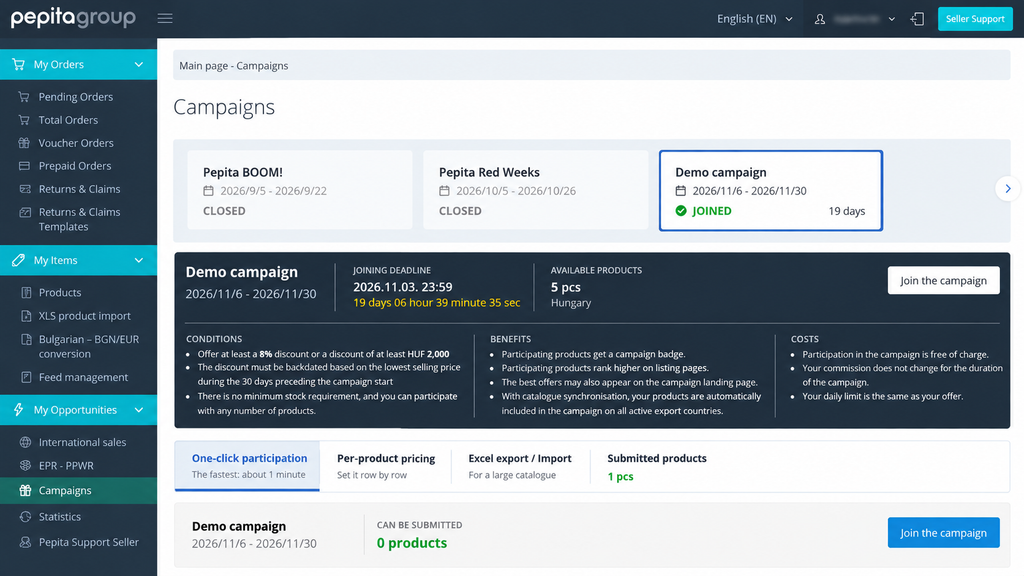
The campaign cards provide an overview of available campaigns, including their campaign periods, submission deadlines and the number of eligible products. You can use the filters to display campaigns you have already joined, campaigns you can still join, upcoming campaigns and expired campaigns separately.
Select the campaign you would like to join.
Check the campaign details
Once you have selected a campaign, the information box displays the most important details you need before joining:
- the campaign name and period;
- the submission deadline;
- the number of eligible products in the selected market;
- the minimum discount requirements for the campaign.
The minimum discount requirements depend on the campaign rules. Depending on the conditions specified for the campaign, the requirement may be met by applying a minimum percentage discount or a minimum discount amount.
Important: the discount is not necessarily calculated from the product’s current price. Instead, the reference price is the product’s lowest price during the 30 days preceding the campaign start date. The system uses this price to calculate the campaign price.
Before proceeding, also check that your products have active offers in the selected market and that the campaign submission period is still open.
Choose which products you want to submit
In the “1 · Which products do you want to join with?” section, you can select which products from the chosen market should be included in the campaign.
You can choose from three options:
All products
Select this option to submit your entire eligible product catalogue in the selected market.
By supra category
Choose this option if you only want to participate with products from specific main categories. In the “Select supra categories” field, you can select one or more main categories.
By end category
If you want to define your product range more precisely, select the end-category option and choose the relevant categories in the “Select categories” field.
The category list shows the categories available in the selected market, the number of your products in each category and the commission rate assigned to that category.láthatod a kiválasztott piacon elérhető kategóriákat, a hozzájuk tartozó termékeid számát és a kategória jutalékát.

Narrow down the product range based on price history (optional)
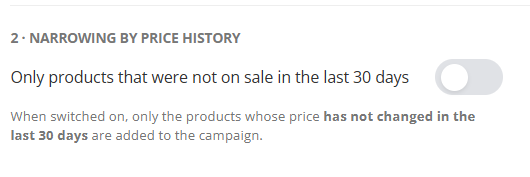
In the “2 · Narrow down by price history” section, you can apply an additional filter.
Enable the “Only products that have not been on sale in the last 30 days” toggle to exclude products whose prices have changed during the previous 30 days as part of a sale.
This filter is optional. If you leave it disabled, the system will process the eligible products in your selected product range and check which ones meet the campaign requirements.
Set the discount and submission details
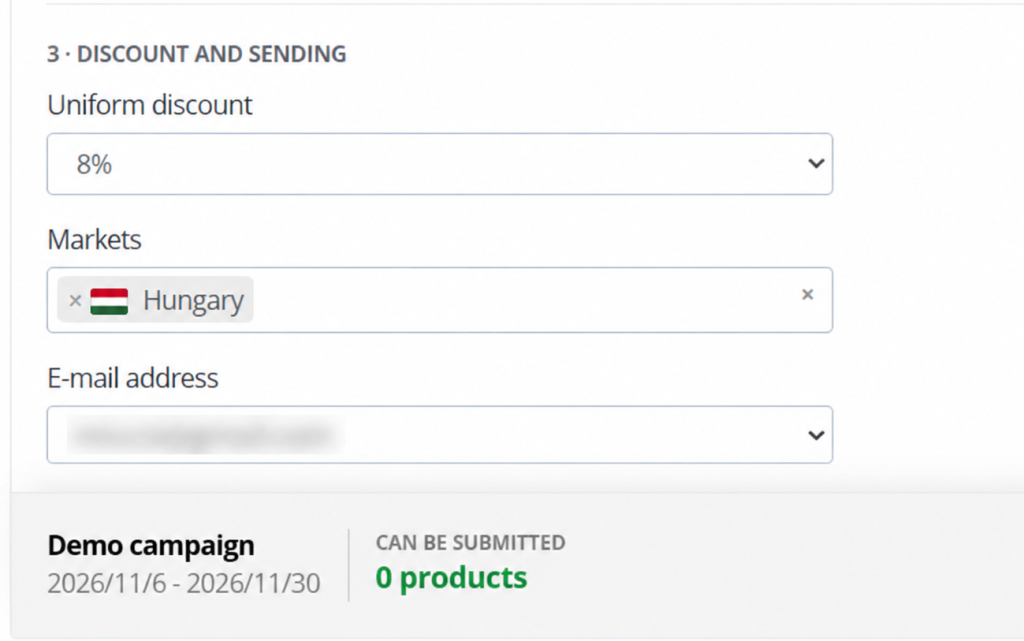
In the “3 · Discount and submission” section, you can configure the main settings for your campaign submission.
Uniform discount
In the “Uniform discount” field, you can select one of the predefined discounts. The first option is the minimum percentage discount required for the campaign, followed by higher predefined values.
If you want to use a different value, select the custom discount option. In the “Discount percentage” field, you can enter a whole number between 5 and 99.
The selected discount applies uniformly to all eligible products included in the submission. The system calculates the actual campaign price for each product based on its lowest price in the previous 30 days.
If a custom percentage discount does not meet the campaign’s minimum percentage requirement but the resulting discount meets the minimum amount requirement, the products can still be accepted into the campaign. Products that do not meet the applicable minimum discount requirement will not be accepted, and you will receive a notification about the unsuccessful submissions.
Markets
In the “Markets” field, select the countries in which you want to participate in the campaign.
You can select multiple markets at once, but only markets where campaign participation is available can be selected. The same discount will apply to every market you select.
If you want to apply different discounts in different markets, submit the products separately for each market using the appropriate discount.
In countries covered by automatic pricing, Pepita sets the campaign prices based on the campaign offers submitted in the base market. You therefore do not need to join the campaign separately for those countries.
Email address
In the “Email address” field, select one of the email addresses associated with your account. We will send the submission results and the list of products submitted to the campaign to this address.
Check the number of products that can be submitted
The “Eligible for submission” field in the action bar at the bottom of the page shows how many products from your selected product range will be submitted for the first selected market.
If you have enabled the filter excluding products that have been on sale in the last 30 days, the number may be preceded by the “≤” symbol. This is because the exact number of products is determined during background processing.
Before proceeding, double-check your selected product range, discount, markets and email address.
Submit your products
Click the “Join the campaign” button.
Wait for the processing to finish
After you start the submission, the system processes the selected products in the background. Depending on the size of your product catalogue, this may take several minutes.
When processing starts, you will see the following message:
“We have started the campaign submission. Your selected products are being uploaded in the background, and we will email you the list when processing is complete.”
While processing is in progress, the submission button will be disabled. Wait until the process is complete and do not start another submission before the system confirms that processing has finished.
Once processing is successful, you will see the following confirmation:
“Done: your selected products have been added to the campaign. We have also sent you the details by email.”
You will receive an email at the address you selected, containing the submission results and the list of products added to the campaign.
What happens to products submitted previously?
A one-click submission overwrites the previously submitted campaign prices for the selected product range. If you have already submitted the same products with a different discount, the discount specified in your latest submission will apply.
Products submitted previously through another method or as part of a different product range will remain in the campaign, provided they are not affected by the new submission.
If a product does not meet the campaign requirements—for example, if its discount is below the required minimum or the necessary 30-day lowest price is unavailable—the system will not add it to the campaign. You will receive a separate email listing these products.
If you want to apply different discounts in different markets, start a separate submission for each market and select the relevant discount.
Important information
- The discount is based on the lowest price in the previous 30 days. The campaign price is not necessarily calculated from the current price.
- Only eligible products can be included in the campaign. A product must have an active offer in the selected market, and its price must have been displayed for at least 15 days.
- The same discount applies to all selected markets. Submit your products separately if you want to use different discounts.
- Wait for confirmation while processing is in progress. Do not start another submission while the current process is running.
- Check your email after submitting your products. If some products have not been added to the campaign, the notification will help you identify the reason.
- Keep the deadline in mind. Once the campaign has started, you can no longer submit new products, change campaign prices or remove products.
If you have any questions about joining a campaign, please contact Seller Support at [email protected].