Catalogue synchronisation – automatic pricing and translation in target countries
With the Catalogue synchronisation feature, you can manage your products in a single country, known as the Home Country. Based on the offers in the Home Country, Pepita automatically creates and updates product offers in the target countries where you enable the feature.
The system automatically calculates prices for each target country and translates product data into the relevant country’s language. Changes made in the Home Country—such as price changes, stock updates and product status changes—are also applied in synchronised target countries.
You can configure the feature on the International sales page in Partner Admin. Catalogue synchronisation can be enabled or disabled separately for each target country.
Table of contents
Quick overview
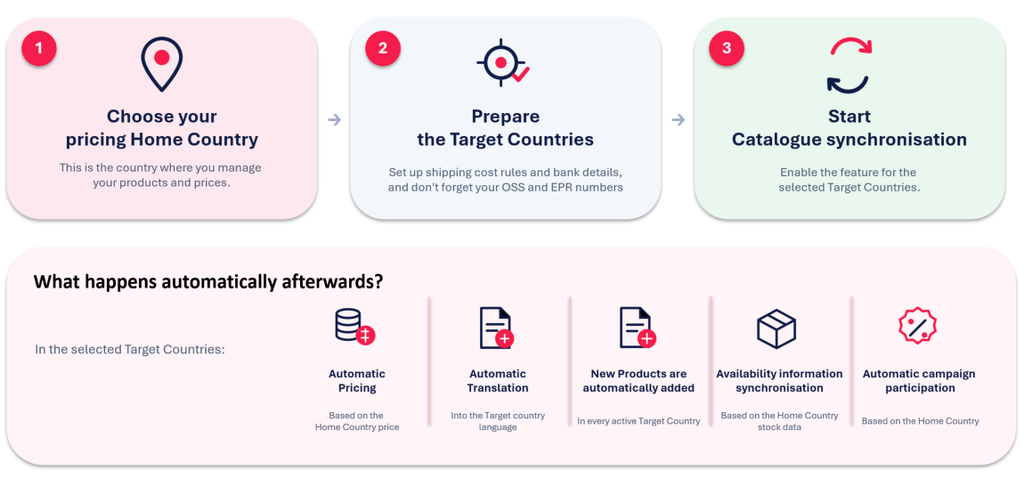
The flowchart below summarises the main steps for setting up and using Catalogue synchronisation. You can find more detailed information in the individual sections.
Setting up the Home Country
The Home Country is the reference country whose product data, prices and stock determine the offers in synchronised target countries.
On the International sales page, you can designate the Home Country by clicking “Pricing base country”.
In the Home Country, you must manage:
- adding new products;
- price and stock updates;
- changes to product data;
- changes to product status;
- campaign participation.
These changes are automatically propagated to target countries where synchronisation is active.
Enabling Catalogue synchronisation in Target Countries
You can enable the feature separately for each target country on the International sales page.
Before enabling Catalogue synchronisation, check that you have met the requirements for international sales. For detailed guidance on registering a foreign-currency account and configuring target-country settings, see the article on the requirements and steps for entering international markets.
An OSS ID and the EPR registrations required in the target countries are also important for international sales. For information on setting these up and on the applicable requirements, consult the relevant tax and registration guides.
Requirements for enabling the feature:
- a foreign-currency account registered for the relevant country;
- at least one shipping cost rule that applies to that country.
If either requirement is not met, the toggle remains inactive and the system indicates which setting is missing.
The following are not basic requirements for using the feature, but we recommend setting them up from the outset or adding them as soon as possible:
- OSS ID;
- EPR registration numbers in the target countries.
Important: when synchronisation is enabled, the Home Country’s products appear in the target country with translated product data and converted prices. Existing offers in the target country that do not have a matching offer in the Home Country will be suspended.
The initial synchronisation may take some time, depending on the number of products. Products appear in the target country after the translation and pricing processes are complete.
Shipping settings in target countries
For international sales, you must also check the shipping settings for the relevant target country.
Shipping costs when using your own shipping service
If you fulfil orders using your own shipping service, you must also set a shipping cost rule that applies to the target country. For detailed instructions on setting central, category-level and product-specific shipping fees, see the How to set the delivery fee guide.
You are not required to deliver to the target country using your own shipping service; however, you may need to arrange transport for handling returns.
Shipping with Pepita Delviery
If you use the Pepita Delivery programme, Pepita arranges the shipping, so manage your own-shipping settings accordingly. The programme is currently available olny for parcels dispatched from Hungary to all seven international Pepita markets.
Shipping time
Check that the delivery time set for your products is appropriate for the target country. For details, see the Setting delivery times by target country guide.
How does the system calculate prices for target countries?
For automatic pricing, the system starts with the gross selling price in the Home Country and calculates the price for the target country, taking VAT, the exchange rate and the rules applicable to the target country into account.
The calculation consists of five steps:
1. Home Country Gross Sale Price
- The calculation starts with the gross selling price in the Home Country. This may be a price provided through a feed or API connection, entered manually, or a temporary promotional price set in the Home Country if the product is currently participating in a campaign.
2. Home Country Net Sale Price
- The system removes the applicable VAT in the Home Country from the gross price to determine the net price. It primarily uses the VAT rate set for the product. If no separate VAT rate is set for the product, it uses the Home Country VAT rate associated with the category.
3. Target Country Net Sale Price
- The system converts the net price calculated in the Home Country into the target country’s currency using the current Hungarian National Bank (MNB) mid-market exchange rate. This gives the net price in the target country’s currency.
4. Target Country Gross Sale Price
- The system adds the VAT applicable in the target country to the target-country net price. The resulting amount is the gross selling price for the target country and takes the target country’s tax rules into account, including the OSS ID.
5. Rounded Target Country Price
- In the final step, the system applies the rounding rule for the relevant currency. Rounding ensures that the final selling price complies with the rule configured for that currency.
- For example, for euros, the system keeps the precisely calculated price below EUR 10, while prices above EUR 10 are rounded to end in .99, depending on the price ending. Thus, EUR 11.40 becomes EUR 10.99, and EUR 11.64 becomes EUR 11.99.
- Rounding is therefore the final step of the calculation and determines the final gross selling price in the target country.
- Important: automatic pricing is not independent price setting. The target-country price is derived from the price in the Home Country, the applicable VAT rates, the exchange rate and the rounding rule for the currency.
Important: automatic pricing is not independent price setting. The target-country price is derived from the price in the Home Country, the applicable VAT rates, the exchange rate and the rounding rule for the currency.
When does the system recalculate prices?
The price is updated automatically when:
- the price or product status in the Home Country changes;
- the exchange rate changes by at least 1%;
- VAT changes in any of the countries concerned;
- an OSS ID is registered;
- a campaign starts or ends.
Managing campaigns
If a product participates in a temporary promotion in the Home Country, the promotion also applies in synchronised target countries.
The promotional price in each target country is calculated using the exchange rate in effect when the campaign starts and does not change during the campaign. If the product is removed from the campaign in the Home Country, the promotion also ends in the target countries.
Checking prices
On the product details page, information about how the price was calculated appears next to the automatically calculated price. The system logs the data used in the calculation and the events that triggered it, so the price can also be checked later.
Important: while synchronisation is active, the target-country price cannot be changed manually, via a feed or through an API, and XLS-based pricing cannot be used either. You must manage prices in the Home Country.
Automatic translation
Based on the product offers in the Home Country, the system automatically translates product descriptions into the target country’s language.
When a new product is added—whether via a feed, an API connection or manually—translation and pricing are automatically completed for every target country where synchronisation is active.
If the product already has a language version in the target country, the existing translation is retained and only the price is updated.
When Catalogue synchronisation is active, the product details page in the target country cannot be edited. You must make changes to product data in the Home Country.
Disabling Catalogue synchronisation
When the feature is disabled, the entire product portfolio in the relevant target country becomes inactive.
How products are reactivated depends on the product management method used previously:
- for feed-managed products, the offers are reactivated during the next feed run;
- for manually managed products, the offers are reactivated through XLS-based product management.
Before disabling the feature, please note that all offers in the target country concerned will become inactive.
FAQ
These products do not have a matching offer in the Home Country from which the system could automatically calculate a price. Therefore, they will be suspended when synchronisation is enabled.
What conditions must be met for a product to appear in a target country?
There must be an active offer in the Home Country, a foreign-currency account registered for the relevant country, and at least one shipping cost rule that applies to that country. If you use your own shipping service, you must also configure shipping costs; if you use Pepita Delivery, you must follow the shipping conditions applicable to the programme.
What happens when the feature is disabled?
The entire product portfolio in the target country becomes inactive. Feed-managed offers can be reactivated during the next feed run, while manually managed offers can be reactivated manually.
Where can I check the automatically calculated price?
You can check how the price was calculated in the information displayed next to the price on the product details page.
If you have any questions, please contact the Seller Support team at [email protected].