Email Delivery Setup for Digital Products
If you sell products that are not delivered by a courier but are sent to customers by email (such as vouchers, licence keys or activation codes), you can enable email delivery. The shipping fee for these products is 0, and you do not need to arrange a parcel, shipping label or courier. The customer receives the product from you by email after payment.
The setup consists of two steps: first, you add the Email Delivery shipping method in every country where you sell, and then you mark the relevant products accordingly. This article guides you through both steps and explains what you need to do when you receive an order containing such products.
Table of contents
Prerequisites
- Access to Pepita Admin (seller account).
- A digital product that you can send to the customer by email yourself.
- You must know which countries you sell the product in, as the shipping method must be added separately for each country.
- Customers can only pay for products delivered by email using online payment methods (e.g. bank card) or bank transfer in advance. Cash on delivery is not available.
When should you choose Email Delivery?
On the product page, you can choose between two options in the Delivery Type field:
| Delivery Type | When should you choose it? |
|---|---|
| Physical Delivery | For all products that customers receive in a parcel, via courier or at a parcel point. This is the default setting. |
| Email Delivery | If you send the product to the customer by email and there is nothing to deliver physically (e.g. a licence key or activation code). |
When adding the shipping method, the Sending Time field allows you to specify how long it takes you to send the product after payment. Customers will see this as a delivery commitment on the product page, at checkout and in the order confirmation email.
| Sending Time | When should you choose it? | What the customer sees |
|---|---|---|
| Immediately after payment | If you can send the product immediately after receiving the payment notification, for example because your system automatically sends the code. | “We will send it by email immediately after payment.” |
| Within 1 business day at the latest | If you handle the delivery manually or cannot guarantee immediate delivery. | “We will send it by email within 1 business day.” |
For payments made by bank transfer in advance, customers will also see that the delivery time is calculated from the moment the payment is credited to your account.
Adding the Email Delivery shipping method
You must complete this step in every country where you sell products delivered by email.
- In the left-hand menu of Pepita Admin, open Shipping Rules under the Logistics section.
- Select the country tab (e.g. HU, RO) where you want to add the method, then click + Add Shipping Method.
 1. Shipping Rules menu item, 2. Country tabs, 3. + Add Shipping Method button, 4. The row of an already added Email Delivery method.
- In the Add New Shipping Method window, select Email Delivery from the Shipping Method dropdown menu.
 1. Shipping Rules menu item, 2. Country tabs, 3. + Add Shipping Method button, 4. The row of an already added Email Delivery method.
The Shipping Fee is automatically set to 0 and cannot be changed. The fields related to cash on delivery and the free shipping threshold are not displayed, as they are not relevant to email delivery.
- In the Sending Time dropdown menu, select either Immediately after payment or Within 1 business day at the latest (see the previous section), then click Save.
 1. Shipping Method: Email Delivery, 2. Shipping Fee: fixed at 0, 3. Sending Time, 4. Save.
- After saving, the window closes without displaying a separate confirmation message, and the method’s settings appear below the table. After refreshing the page, the Email Delivery row will also appear in the table with Active status and a shipping fee of 0.
 1. Selected country tab, 2. The new Email Delivery row with Active status.
- Repeat these steps for every other country where you sell products delivered by email.
 1. Shipping Method: Email Delivery, 2. Shipping Fee: fixed at 0, 3. Sending Time, 4. Save.
 1. Selected country tab, 2. The new Email Delivery row with Active status.
If General Home Delivery has already been added in the selected country, only Email Delivery will appear in the dropdown menu. If both methods have already been added, the window will display the message: All shipping methods have already been added!
Changing the sending time
- On the Shipping Rules page, select the relevant country tab.
- In the Email Delivery row, click the edit icon in the Actions column.
- In the Email Delivery – (country) section that opens, change the Sending Time value, then click Save.
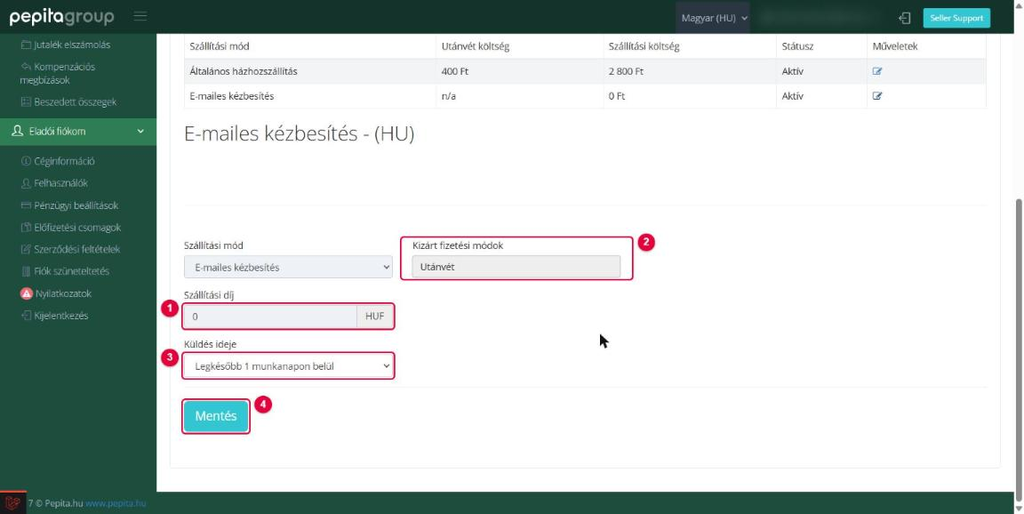
This view also shows that the method excludes the Cash on Delivery payment method. This applies to all email delivery methods and cannot be changed.
Marking a product as Email Delivery
- Open My Products under the My Offers menu and navigate to the product page.
- At the top of the product page, use the country buttons (e.g. HU Product Page, RO Product Page) to select the country-specific product page you want to view. The first button represents the product’s primary country.1. Country buttons at the top of the product page. The selected button indicates which country’s product page you are viewing.
- Scroll down below the VAT Rate field. Here you will find the Delivery Type dropdown menu, which is set to Physical Delivery by default.1. Delivery Type, 2. Settings related to physical delivery, which disappear when Email Delivery is selected.
- Select Email Delivery. The following information will appear: “With Email Delivery, the product’s shipping fee is 0. Physical shipping methods and the shipping settings listed below do not apply.”
The physical shipping settings (Pepita Delivery Type, Category Classification, Added to Category Exclusions, Unavailable Shipping Methods) will be hidden. However, you must still complete the Stock field, as the product remains subject to stock availability.
If the Email Delivery shipping method has not yet been added in the country you are currently viewing, a yellow warning will appear. You can add the method by clicking the Shipping Settings link (see the previous section).1. Delivery Type: Email Delivery, along with the blue information message, 2. Warning displayed if the Email Delivery shipping method has not been added in the selected country, including the Shipping Settings link. - Click Save at the bottom of the product page. Once the changes have been saved successfully, the page will reload and Email Delivery will remain selected in the Delivery Type field.
 1. Country buttons at the top of the product page. The selected button indicates which country’s product page you are viewing.
 1. Delivery Type, 2. Settings related to physical delivery, which disappear when Email Delivery is selected.
 1. Delivery Type: Email Delivery, along with the blue information message, 2. Warning displayed if the Email Delivery shipping method has not been added in the selected country, including the Shipping Settings link.
Which country does the system check when saving?
When saving, the system checks whether the Email Delivery shipping method has been added in the product’s primary country. If it has not, the save operation will fail with an error (see Common Errors).
You will not receive a save error for the other countries. Instead, a yellow warning will indicate if the method is missing. In this case, the product cannot be purchased in that country.
Bulk setup via feed, XLS and API
If you have a large number of products, you can also configure the setting through your existing product upload channels.
The same rule applies to all channels: a product will only be marked as Email Delivery if the Email Delivery shipping method has been added in the target country. You can check this on the product page (see the previous section).
| Channel | Field | Values | What happens if the method has not been added? |
|---|---|---|---|
| Pepita XML feed | <EmailDelivery> (optional) | true, false, 1, 0 | The setting will not be applied, and no error message will be displayed. |
| Custom (mapped) feed | emailDelivery | true, false, 1, 0 | Same as for the Pepita XML feed. |
| XLS Product Management (editing existing products) | Column S: Email delivery (yes/no) | yes, no | The other data in the row will be updated, but the setting will not. The result email will list the affected products under Rows with errors. |
| Pepita REST API (product upload) | email_delivery | true, false | The item will fail with the EMAIL_DELIVERY_NOT_CONFIGURED error code. |
- An empty or invalid value in the feed will not change the product’s existing setting.
- In the API, an omitted or null value preserves the existing setting. Variations inherit the setting of the main product.
- You can switch a product back to Physical Delivery at any time through any channel (false, 0 or no).
- Price and stock synchronisation for products delivered by email works in the same way as before.
Our full feed documentation is available HERE.
What Pepita handles automatically
- For products marked as Email Delivery, customers can only select the Email Delivery shipping method. The shipping fee is displayed as Free, and neither the product-specific shipping fee nor the category-based shipping fee rules apply.
- On the product page, at checkout and in the order confirmation email, customers will see the sending time you have configured (e.g. “We will send it by email immediately after payment.”).
- Cash on delivery cannot be selected at checkout (“Orders containing products delivered by email cannot be paid for using cash on delivery.”).
- If the cart contains only products delivered by email, customers do not need to provide a shipping address. Their billing address will be used for the order instead.
- Customers are informed at checkout that their email address will be shared with the seller.
- No shipping label is generated for email-delivered items, and no shipping or parcel tracking notifications are sent for them. Customers will not receive a Shipping Information email for orders containing only products delivered by email.
- If a customer purchases both email-delivered and physical products from you in a single order, you will receive one package containing separate email-delivered and physical shipments. A shipping label is generated only for the physical shipment.
- If your orders are automatically accepted with Active status in your account (automatic closure), an order containing only email-delivered products will automatically become Active once payment is received, provided the customer pays by bank card or uses a Pepita voucher that covers the full order value. In this case, you do not need to confirm the order manually.
What you need to do when you receive an email delivery order
- Check the customer’s email address. You can find the customer’s actual email address in the Customer email address row of the new order notification email, or in the Email address field in the order details in Pepita Admin. This information is displayed only for packages containing email-delivered items.
- Send the product by email within the promised sending time. You are responsible for sending the digital product (e.g. the licence key) to the customer. Pepita does not send it on your behalf.
- Confirm the order if it does not automatically receive Active status. This may happen, for example, if you do not use automatic closure for your orders, if the customer paid by bank transfer in advance, or if the order also contains physical products. In the Open Orders menu, use the usual Send 🙂 option. For payments made by bank transfer in advance, the purchase price is credited to your own bank account, so only send the product after the payment has been received.
- For mixed orders, dispatch the physical product as usual and send the email-delivered product by email.
You can also filter your email delivery orders separately on the All Orders page using the Shipping Method filter.
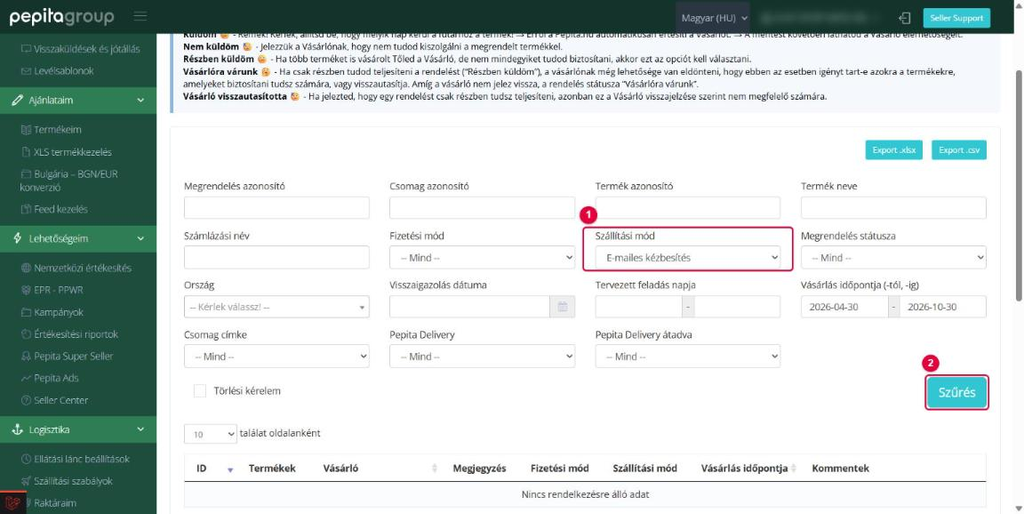
If you receive orders via API or webshop integration
In the Pepita API, the shipping method value for Email Delivery is email.
You will receive this value when an order contains only products delivered by email. For mixed orders, the shipping method of the physical shipment will be returned. The email_delivery field in the order items indicates which products are delivered by email.
If your system processes orders based on the shipping method, make sure that no courier or shipping label is assigned to the email value.
Our full API documentation is available HERE.
How to verify your settings
- On the Shipping Rules page, check all country tabs. In every country where you sell products delivered by email, the Email Delivery row should have Active status and a shipping fee of 0.
- Open the product page for every country where you sell the product. The Delivery Type field should be set to Email Delivery, and no yellow warning should be displayed.
- If you configured the setting via feed, XLS or API, open a few products on their product pages and check the settings in the same way. After an XLS upload, also check the result email.
- On the Pepita website, the product’s shipping information should display Email Delivery and the configured sending time, with a Free shipping fee.
- When you receive your first email delivery order, check whether the Customer email address row is displayed in the new order notification email.
Important information
- Customers can only purchase products marked as Email Delivery in countries where the Email Delivery shipping method has been added. The system will not offer any other shipping method for a product marked as Email Delivery.
- Once added, sellers cannot delete or deactivate the Email Delivery shipping method themselves. If you want to remove it, first switch all affected products back to Physical Delivery, then contact Partner Support.
- The Sending Time is a commitment to the customer. Only select Immediately after payment if you can genuinely send the product immediately.
- Use the customer’s email address only for order fulfilment.
Common Errors and Solutions
“A product can only be marked as delivered by email if the Email Delivery shipping method has been added in this country.”
“A product can only be marked as delivered by email if the Email Delivery shipping method has been added in this country.”
You will receive this error when saving the product page if the Email Delivery shipping method has not been added in the product’s primary country. In this case, the Delivery Type will remain set to Physical Delivery.
Solution: Click the Shipping Settings link in the error message, add the method in the primary country (the first country button on the product page), then save the product again.
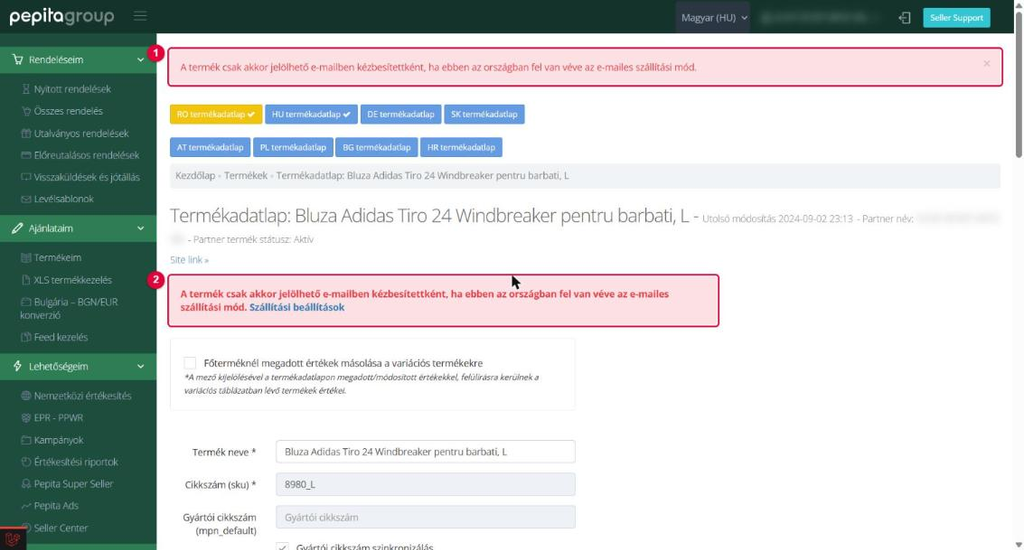
Yellow warning: “The Email Delivery shipping method has not been added in this country.”
The product can be saved successfully, but it cannot be purchased in the selected country.
Solution: Add the Email Delivery shipping method in this country as well, on the Shipping Rules page.
In the new shipping method window: “All shipping methods have already been added!”
All available shipping methods, including Email Delivery, have already been added in the selected country.
Solution: Check the table under the relevant country tab. If the Email Delivery row is listed, no further action is required.
“This shipping method has already been added for this country. If it is marked as deleted in the list, restore it there.”
The same shipping method can only be added once per country. This may also happen if you click the Save button twice.
Solution: Refresh the page and check the table. If the row is marked as deleted, restore it in the list.
I send the value true in my feed, but the product is still not marked as Email Delivery.
The Email Delivery shipping method has not been added in the country associated with the feed, so the setting is not applied. The feed will not return an error message in this case.
Solution: Add the method in the relevant country, then check the product on its product page after the next feed processing.
The API returns the EMAIL_DELIVERY_NOT_CONFIGURED error.
The Email Delivery shipping method is not active in the product’s primary country.
Solution: Add the method in the relevant country, then resubmit the item.
The customer cannot pay using cash on delivery.
This is intentional. If the cart contains a product delivered by email, the order cannot be paid for using cash on delivery. Customers can pay online (e.g. by bank card) or by bank transfer in advance.
I cannot find how to delete the Email Delivery shipping method.
As a seller, you cannot delete this method yourself. The method also cannot be deleted as long as you have products marked as Email Delivery in the relevant country.
Solution: Switch your products back to Physical Delivery, then contact Partner Support to request the removal of the method.
If you have any questions or requests, please do not hesitate to contact us!
Pepita Group Team